

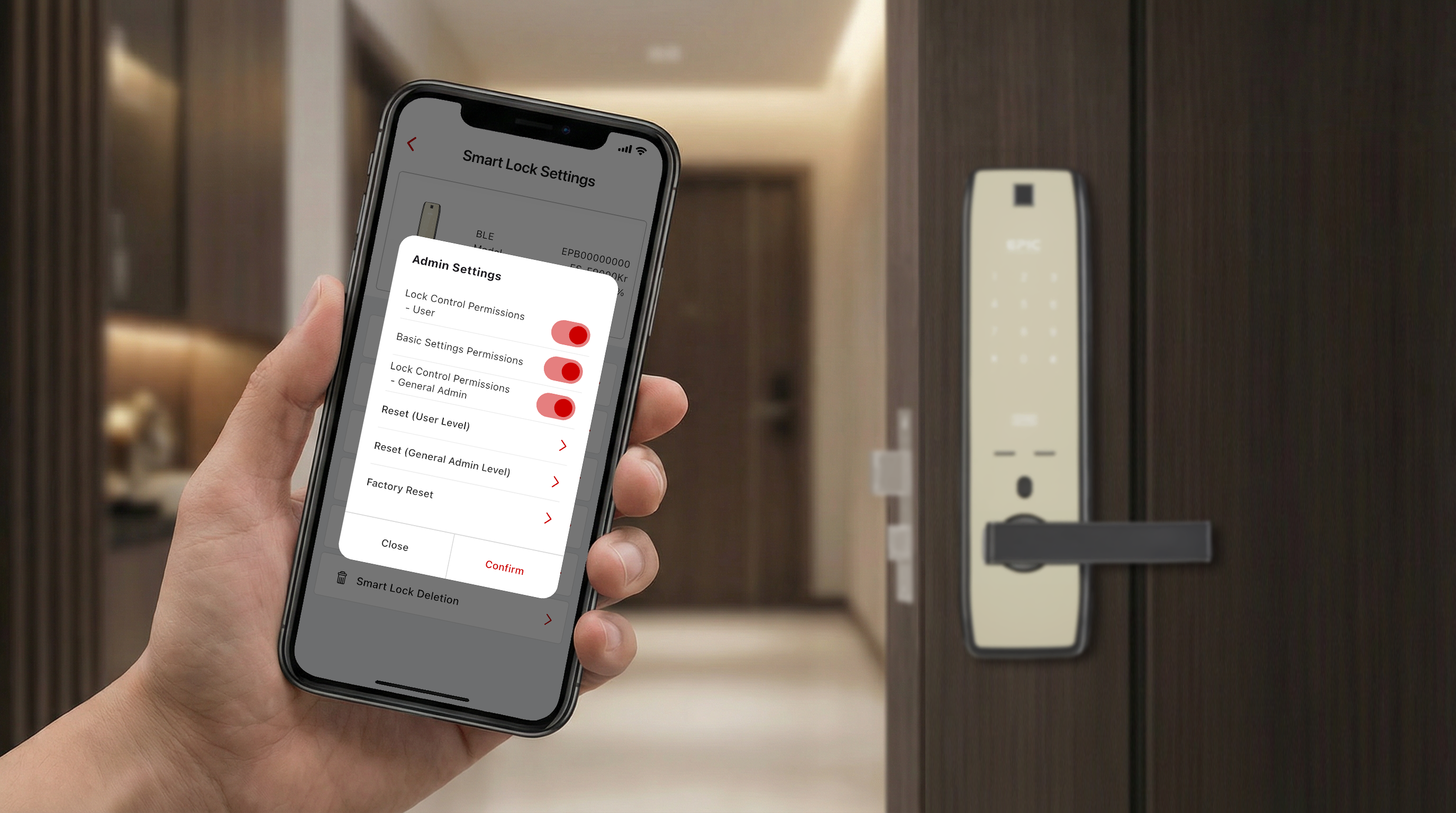
Learn how to pair the EPIC Things app with your door lock and manage your device as a Super Admin.
How to Set the Super Admin PIN
* If the Super Admin PIN is already registered, the LED will not turn on in step 3.
Press the [R] button on the inner body.
Enter the User PIN, then press the [#] button.
Example User PIN: 1234
Press and hold the [OPEN/CLOSE] button for 3 seconds until the LED on the outer body lights up.
Enter a 6–12 digit Super Admin PIN, then press the [#] button.
Example Super Admin PIN: 123456
Re-enter the Super Admin PIN to confirm.
Example Super Admin PIN: 123456
Press the [R] button to complete the Super Admin PIN registration.
What Can a Admin Do?
The EPIC Smart Lock offers 3 user level modes: Super Admin, General Admin and User.
The Super Admin has the highest level of access and control over all smart lock functions, ensuring more secure management.
Additionally, only the Super Admin has the authority to link the app with the smart lock, preventing non-owners from linking the app without permission.
To use the EPIC Things app, the Super Admin PIN is required.
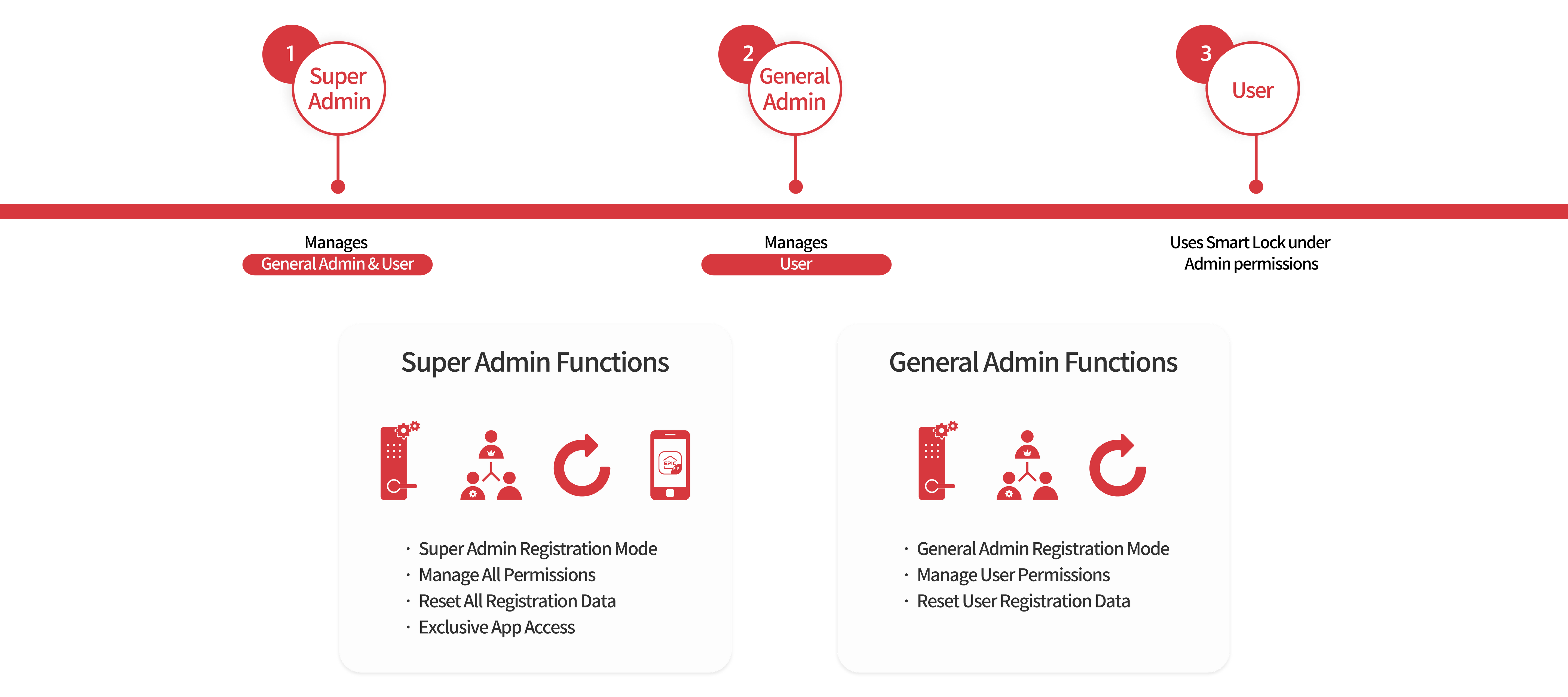
Permission Levels
Super Admin
General Admin
User
✅
❌
❌
✅
✅ (With Permission)
✅ (With Permission)
✅
✅ (With Permission)
✅ (With Permission)
✅
✅ (With Permission)
✅ (With Permission)
✅
❌
❌
✅
❌
❌
✅
✅
❌
✅
✅
❌
✅
✅ (On Lock)
✅ (On Lock)
✅
❌
❌
✅
❌
❌
Setup & Super Admin FAQ
How do I register a Super Admin PIN?
The registration process depends on whether a Super Admin PIN has already been set:
If no Super Admin PIN exists:
[R button] → [User PIN] → [#] → [Press and hold OPEN/CLOSE button for 3 seconds (until LED lights up)] → [New Super Admin PIN (6-12 digits)] → [#] → [Re-enter Super Admin PIN] → [R button]
※ If a Super Admin PIN is already registered, the LED will not light up when you press and hold the [OPEN/CLOSE] button for 3 seconds.
If a Super Admin PIN already exists (to change it):
[R Button] → [Current Super Admin PIN] → [#] → [1] → [New Super Admin PIN] → [#] → [Re-enter PIN] → [R Button]
How do I register a General Admin PIN?
The registration process depends on whether a General Admin PIN has already been set:
If no General Admin PIN exists:
[R Button] → [Super Admin PIN] → [#] → [Press OPEN/CLOSE for 3 seconds (until LED lights up)] → [New General Admin PIN] → [#] → [Re-enter PIN] → [R Button]
If a General Admin PIN already exists (to change it):
[R Button] → [Current General Admin PIN] → [#] → [1] → [New General Admin PIN] → [#] → [Re-enter PIN] → [R Button]
What should I do if I forget the Super Admin PIN?
If the Super Admin PIN is lost, it cannot be recovered or verified. You must proceed with a Factory Reset.
For App-supported models, the Super Admin can perform a reset via the EPIC Things (BLE) app under Smart Lock > Admin Settings > Factory Reset.
For non-app models, factory reset procedures are not provided online for security reasons. Factory resets are generally processed in South Korea, but in some regions, you may receive support through a local agent.
※ Service fees may apply when using agent services.